Keeping your online card payments secure is important. You can approve these using either Danske ID or a One-Time Passcode and password solution.
What option should I use?
Option 1: Danske ID
You can use our security app to approve online card payments with a swipe if you:
Have eBanking*
Are a Personal Banking customer
Have a smartphone or tablet device
* If you do not have eBanking but would like to use Danske ID, you will first need to register for eBanking. Expand the Danske ID section below to learn more.
If you don't receive a text message with a One-Time Passcode, we might not have the right mobile number for you but don’t worry, you can check and update this yourself on eBanking or the Mobile Banking app.
On the Mobile Banking app
After you've logged on, tap the Profile icon at the bottom of the screen.
Select ‘Contact information’.
Tap 'Mobile (personal)' and enter or update your mobile number.
On eBanking
Log on to eBanking and select ‘Contact’ at the top right of the screen.
Select ‘Personal data’ on the drop-down and then ‘Edit’ to enter or update your mobile number. If you do not have a mobile phone, you may be able to receive voice messages to a landline number (please check with your service provider).
Enter your eBanking passcode and select 'OK' to save your details.
First time using the One-time passcode and Password solution for 3DSecure?
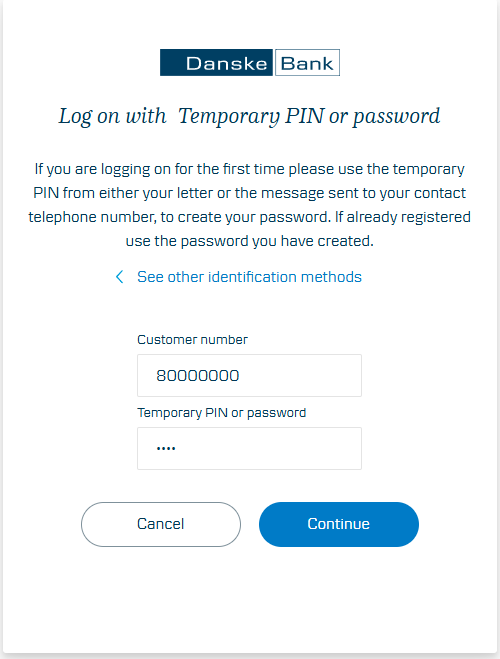
First you will need to create your password. You will need your customer number and the Temporary PIN we have sent you. If you don’t have either of these please call us on 0345 600 2882, where we can provide you with your customer number and issue a Temp PIN by text. You will then have 15 minutes to create/change your password.
Enter the temporary PIN (from the text message we sent to your mobile phone) and click 'continue'
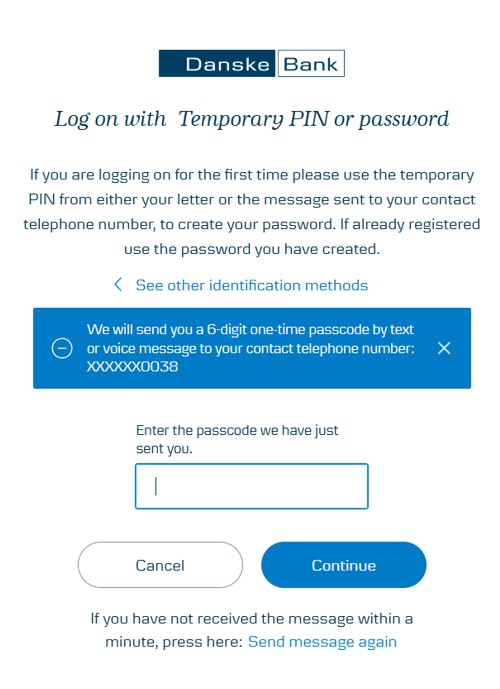
Enter the one-time passcode sent to you by text message
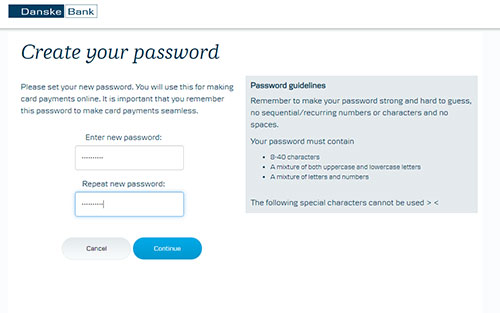
Enter the password you want to use from now on to authorise online purchases and repeat to confirm your password
Click 'Continue' and your password is created. This will be your personal password which you will use to approve online purchases along with the one-time passcode which we will text you.
If you have an eSafeID you can log on to the Card Management Portal to create a password using the same user id and passcode you use to log on to eBanking.
To set up your password:
Go to the Card Management Portal
Select ‘Log on with eSafeID’
Enter your user id and passcode which you use to log on to eBanking
Enter the six-digit one-time password displayed on your eSafeID device and click ‘continue’
Enter the password you want to use from now on to authorise online purchases and repeat to confirm
Click 'Continue' and your password is created. This will now be your personal password which you will use to approve online purchases along with the one-time passcode which we will text you
If you cannot remember your user id or passcode, contact our Customer Support team on 0345 600 2882*.
If you have forgotten your passcode, we’ll issue you with a temporary passcode which you’ll need in order to set up a new passcode on eBanking. Learn more about setting a new passcode.
Your password must contain:
8 – 40 characters
A mixture of both uppercase and lowercase letters
A mixture of letters and numbers
The following special characters cannot be used: > <
It is important to make your password strong and hard to guess therefore we would recommend not using any sequential numbers i.e. 1234, characters i.e. abc or spaces.
You can change your password at any time.
To change your password if you initially created your password using a temporary PIN:
Enter your user id and passcode which you use to log on to eBanking
Enter the six-digit one-time password displayed on your eSafeID device and click ‘continue’
Create your new password and repeat the new password.
Click 'Continue' and your password is updated.
If you created your password initially using the temporary PIN:
If you forget your password you will have 5 attempts to enter your password correctly on the merchant site before it is blocked and will need to be reset. Remember that your password will be a mixture of letters and numbers, set by you.
If you believe you may remember your password, you can check by attempting to log into our Card Management Portal - To do so you will need your customer number to log in.
If you cannot remember your customer number or your password after 5 attempts, you can contact us on our dedicated Strong Customer Authentication Line 0345 600 2882*. Where an advisor will be able to assist you
If you created your password initially using an eSafeID device:
After you enter your card details, you'll be asked to enter the one-time passcode sent to you by text message, followed by your password.
You'll have 5 attempts to enter your password correctly before it's blocked and needs to be reset. If this happens, please contact our Customer Support Team on 0345 600 2882*.
The One-Time passcode needs to be sent by text, the alternative solution is to use the Danske ID option.
If you don’t have a mobile phone, you may be able to receive one-time passcodes by voice message to a landline (please check with your service provider), or instead download and use the Danske ID security app on a tablet.
Your one-time passcode will remain valid for 3 minutes from the time you make your purchase on the merchant site.
If you weren’t asked to verify your payment, check you balance to ensure the payment has not left your account. If it has, you will need to contact the retailer they may be having an issue.
If you were asked to verify your payment, and you entered the details correctly, contact us on 0345 600 2882* Where an advisor will be able to assist you.
For all strong customer authentication related queries contact our Customer Support team on 0345 600 2882.
* Customer Support opening hours are:
8.00am-6.00pm Monday to Friday
9.00am-1.00pm on Saturday
Except for bank holidays or other holidays in Northern Ireland when the bank is not open for business.
Danske Bank’s use of cookies and processing of personal data
We use data from our own cookies and from third-party cookies. We use cookies and process personal data for the purpose of remembering your settings, improving our services, measuring traffic, showing you relevant messages (including profiling) and tracking your use of our website. You can choose to accept our use of all cookies, our use of functional, statistical and marketing cookies or our use of necessary cookies only. Your consent covers the use of both cookies and the associated processing of personal data. To get more information, click use of cookies and processing of personal data. To read more about how to revoke your consent, click the cookie policy link at the bottom of our website.
Content is loading
Show
Hide
Show more rows: All table rows are already visible for screen readers.
Show less rows: All table rows are already visible for screen readers.